
Tickets
Search, filter, triage, bulk-edit and answer tickets in GVenta Help Desk, including the resizable ticket drawer, reply composer, CC handling and attachments.
Documented from GVenta Help Desk version 1.8.55.
The Tickets page at https://your-instance.example/tickets is the main workspace in GVenta Help Desk. This is where you search, filter, triage, bulk-edit and answer tickets, all without leaving the list.
Views
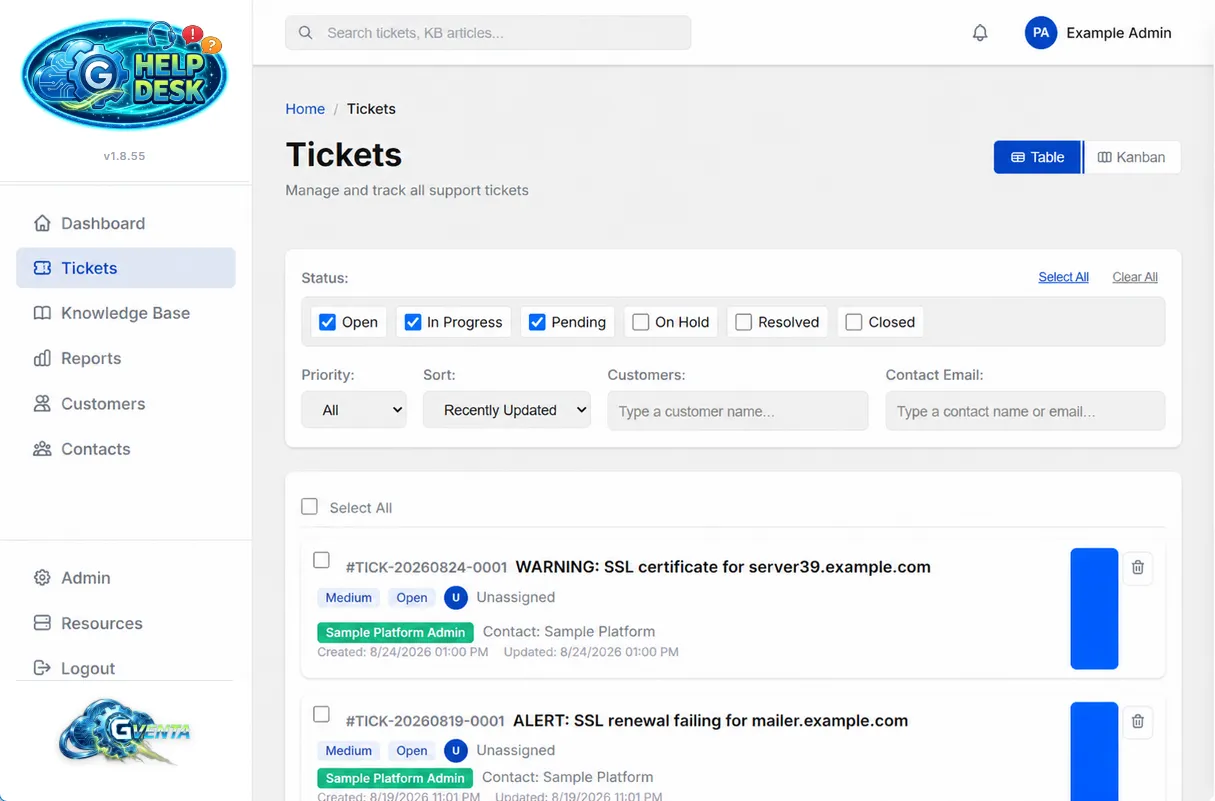 Tickets in Table view, with the multi-select status filter and a color band per source.
There are two ways to look at the queue:
- Table view is a dense list, one row per ticket.
- Kanban view is a board with Open, In Progress, Pending and Resolved columns. Each column shows a live count of the tickets in it.
Filters and sorting
| Control | Options |
|---|---|
| Status | Multi-select checkbox chips for all six statuses: Open, In Progress, Pending, On Hold, Resolved, Closed. Select All and Clear All shortcuts are provided. Open, In Progress and Pending are ticked by default. |
| Priority | All, Urgent, High, Medium, Low. |
| Sort | Newest First, Oldest First, Recently Updated (the default), High Priority First. |
| Customer | Multi-select with type-ahead search. |
| Contact Email | Multi-select with type-ahead search. |
| Global search | The search box in the header. |
Results are paginated at 20 per page, with a live “showing X of Y” counter.
Filters live in the URL
Every filter state is reflected in the page address, so any combination can be bookmarked, shared with a colleague, or linked to. This is what makes the Dashboard drill-downs work: each stat links to the Tickets page with the exact filters that produced its count.
Bulk operations
Each row has a checkbox, and there is a Select All control. As soon as at least one row is selected, a bulk actions bar appears showing the selection count and offering three actions across the whole selection:
- Assign to an agent.
- Change Status.
- Change Priority.
Each action opens a modal picker, applies to every selected ticket, and writes audit entries and notifications exactly as if you had changed each ticket individually.
The ticket drawer
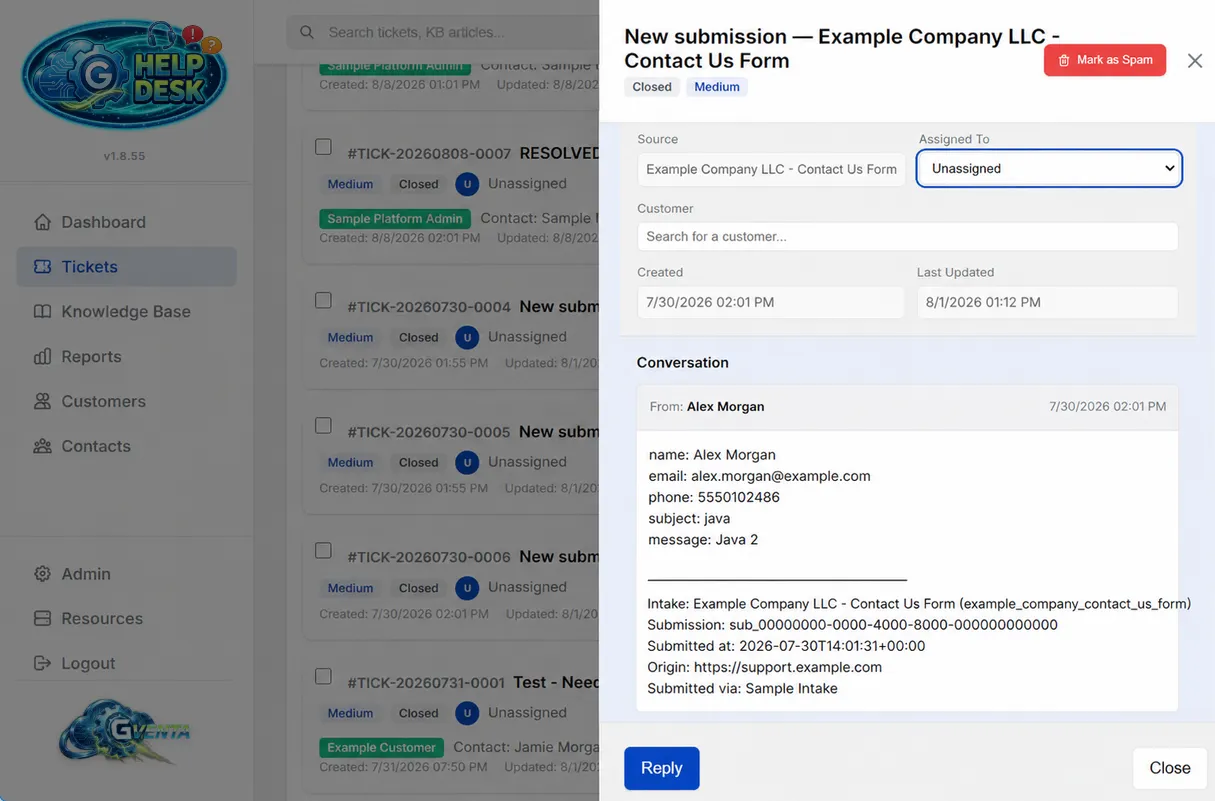 The ticket drawer: properties, conversation and reply without leaving the list.
Clicking a ticket opens it in a slide-over panel rather than a new page, so the list stays where it was.
Resizing
Drag the drawer’s left edge to resize it, from a minimum of 400 pixels up to 80% of the viewport width. Double-click the edge to reset to the default width. The width you choose is remembered in your browser across sessions. The drag handle is touch-friendly on tablets.
Header and summary
The header shows the subject, a status badge, a priority badge, a Mark as Spam button and a close control. Beneath it, a summary strip shows the Requestor, the Source and the Customer.
Ticket properties
A collapsible properties grid holds the ticket’s metadata. Ticket ID, Requester, Created, Last Updated and Source are read-only. Four fields are editable:
| Field | Notes |
|---|---|
| Status | Any of the six statuses. |
| Priority | Low, Medium, High or Urgent. |
| Assigned To | Populated from the live list of staff users. |
| Customer | A type-ahead autocomplete of company records. |
Changing any of these saves immediately. The header badges and the row in the underlying list update without a page reload. Every change is recorded in the audit log with the old and new values, and status changes and assignments send the appropriate notification emails to the customer and the assigned agent, as well as to any team recipients configured under Settings, Notifications.
Conversation thread
The thread shows every message with its sender and timestamp. Staff replies, customer replies and internal notes are styled in different colors (the colors are configurable under Look & Feel), so you can tell at a glance who said what and what the customer never saw. Each message can be collapsed individually.
Reply composer
The composer has a formatting toolbar (bold, italic, bullet list, insert link) and a live character counter. There are two send paths:
- Send Reply records your message on the ticket and emails it to the customer.
- Internal Note records your message on the ticket for staff only. It is never emailed and is visually flagged in the thread.
See Core concepts for how internal notes are kept away from customers.
CC recipients
Add CC recipients as removable chips. The composer pre-populates CCs from the ticket’s existing message history automatically, so a conversation that started with three people copied stays that way unless you remove someone.
Attachments
Drop files onto the dropzone or use the multi-file picker; a live list shows what is attached. The accepted file types are configurable per instance, with a default of jpg, jpeg, png, gif, pdf, doc, docx, xls, xlsx, ppt, pptx, txt, csv and zip. Files you attach to a reply are sent as real attachments on the outgoing email, so the customer receives files rather than links that require a sign-in. Storage limits and the file-type rules that apply regardless of configuration are described in Security and storage.
Unsaved-draft protection
If you have typed a reply and then close the drawer (by clicking the backdrop, pressing Escape or using the close button), or navigate away from the page entirely, the application warns you before discarding the draft.
Why it matters: Triage a hundred tickets in a few clicks, answer without ever losing your place in the list, and never accidentally lose a half-written reply.
What happens when you send a reply
A few behaviors are worth knowing about because they affect SLAs, reporting and what customers see.
- Your reply is saved before the email is sent. If email delivery fails, the reply is still on the ticket and nothing you wrote is lost. The interface tells you precisely why delivery failed, and distinguishes between three configuration problems (no sender configured, the sender not authenticated, and an incomplete configuration) and general failures. Administrators are pointed straight to Settings, Email Integration to fix it; non-administrators see a message telling them who to contact.
- First response is stamped automatically. The first agent reply on a ticket records the first-response time, and that timestamp is what first-response SLA reporting measures against. Internal notes do not count. See SLA engine.
- Replies land in the customer’s existing thread. Outgoing replies carry the right threading headers and a subject of the form
RE: [TICK-YYYYMMDD-NNNN] Original Subject, with the prefix and ticket tag added only if they are not already there, so subjects never accumulateRE: RE: RE:. See Email pipeline. - Your message, CC list and files travel together in a single request, so a reply with attachments is never half-sent.
Marking a ticket as spam
Mark as Spam (in the drawer header, or the bin icon on dashboard cards) removes the ticket from the working queue after confirmation. Before the original is deleted, a forensic copy is retained with the ticket number, subject, requester, body and source, and an audit entry is written. The queue stays clean without losing the record of what arrived.
Background refreshes
The list refreshes in the background on the same 30-second heartbeat as the notification bell. Rather than redrawing the whole table, the page compares each row and updates only what actually changed, so your scroll position and any checkboxes you have ticked are preserved.
Related pages
- Dashboard for the stats that link into filtered ticket lists.
- Customers and contacts for the records behind the Customer and Requester fields.
- API reference for the ticket, message and attachment endpoints.