
Overview
What GVenta Help Desk is, the four ideas behind it, how your instance is provisioned, where staff and customers sign in, and how the workspace is laid out.
Documented from GVenta Help Desk version 1.8.55.
GVenta Help Desk is a multi-tenant, email-first customer support platform. It turns an ordinary mailbox into a fully tracked ticketing system, gives your support staff a single workspace for every conversation, gives your customers a branded self-service portal, and exposes the whole thing over a documented REST API so it can be automated or embedded in other systems.
The four ideas behind the product
Email is the front door
Most customers do not want to learn a portal; they want to send an email. The Help Desk continuously monitors one or more mailboxes (Microsoft 365 or any IMAP server), converts incoming mail into tickets, threads replies back onto the correct ticket automatically, matches senders to the right company record, ingests attachments, and files everything without a human touching it. See Email pipeline for how this works.
Why it matters: Your customers keep emailing the address they already know. You get structure, history, SLAs and reporting for free.
Staff get one screen, not five
Tickets, conversation history, internal notes, customer records, contacts, knowledge base articles, attachments and analytics all live in one application with a consistent, resizable interface. Agents answer faster because everything they need is one click away, with less context-switching.
Customers get a real portal when they want one
A separate, independently branded client area lets contacts sign in, raise tickets, follow conversations, attach files, and search a knowledge base scoped to exactly what their company is allowed to see. Routine questions are deflected to self-service and customers get 24/7 visibility, without exposing internal notes or other customers’ data. See Client portal.
Everything is an API
Every capability the interface uses is a documented REST endpoint, authenticated by JWT or long-lived API keys, so the Help Desk can be driven by scripts, integrations, AI agents or other products. Start with API getting started and the full endpoint reference.
Why it matters: The help desk fits your stack instead of the other way around.
Your own instance
Each customer’s instance of GVenta Help Desk is provisioned through Press Mage and runs on its own domain, such as https://your-instance.example. Every instance has its own branding, color scheme, email templates and isolated file storage. Nothing is shared with other customers’ instances.
Throughout this documentation, replace https://your-instance.example with the domain of your instance.
Where to sign in
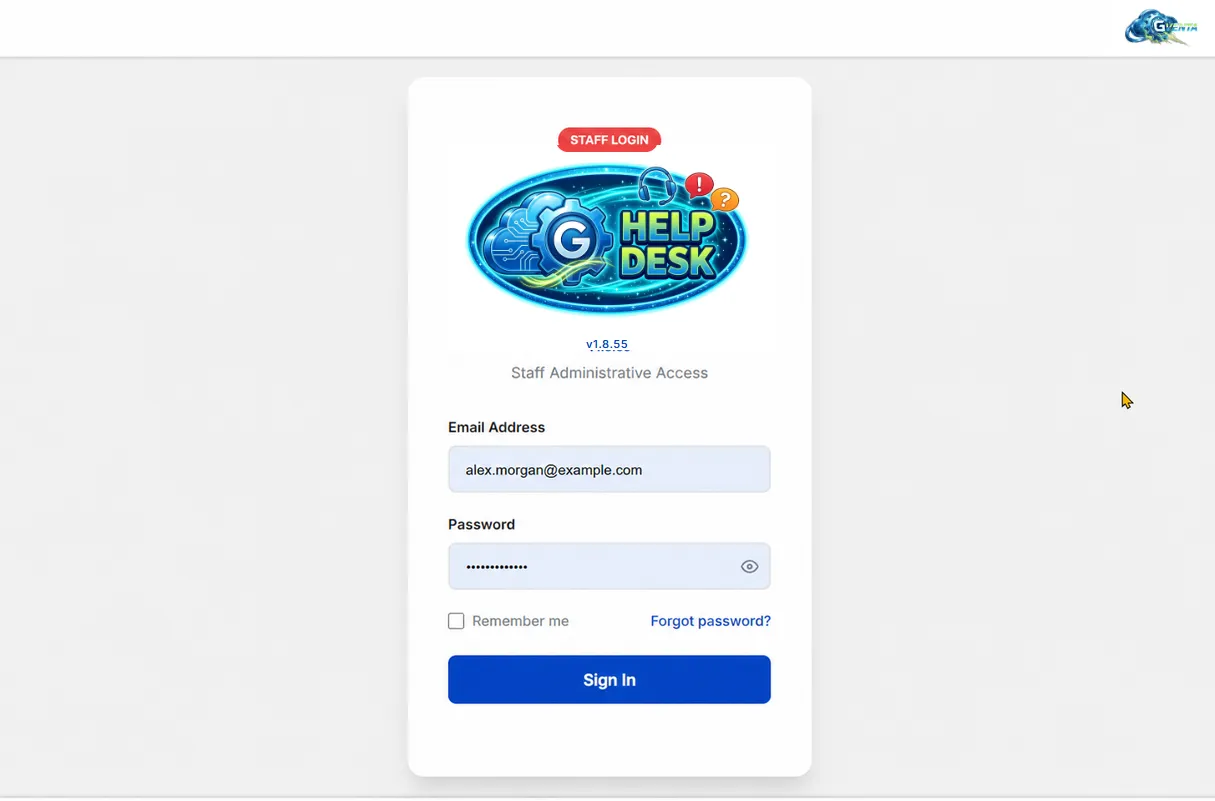 Staff sign-in: email, password, “remember me” and password recovery.
The application has a handful of entry points. The root URL works out where you should be.
| URL | What it does |
|---|---|
https://your-instance.example/ | Intelligent entry point. Signed-in staff are sent to the dashboard, signed-in customer contacts are sent to their portal dashboard, and everyone else is sent to the client sign-in page. |
/admin | Staff sign-in, with email, password and a “remember me” option. The older /login address still works for legacy links. |
/forgot-password and /reset-password | Staff password recovery using expiring tokens sent by email. |
/change-password | Forced password change. You land here after signing in if an administrator has reset your password, and you must choose a new one before continuing. |
/logout | Ends your session and revokes the token you were using. |
/clientarea | The client portal sign-in and registration page for your customers’ contacts. |
/kb/{slug} | A clean URL for a knowledge base article. |
| Anything else | A branded “not found” page with a link back to the dashboard. |
Customer contacts have their own password recovery pages under the client portal; these are covered in Client portal.
The staff workspace
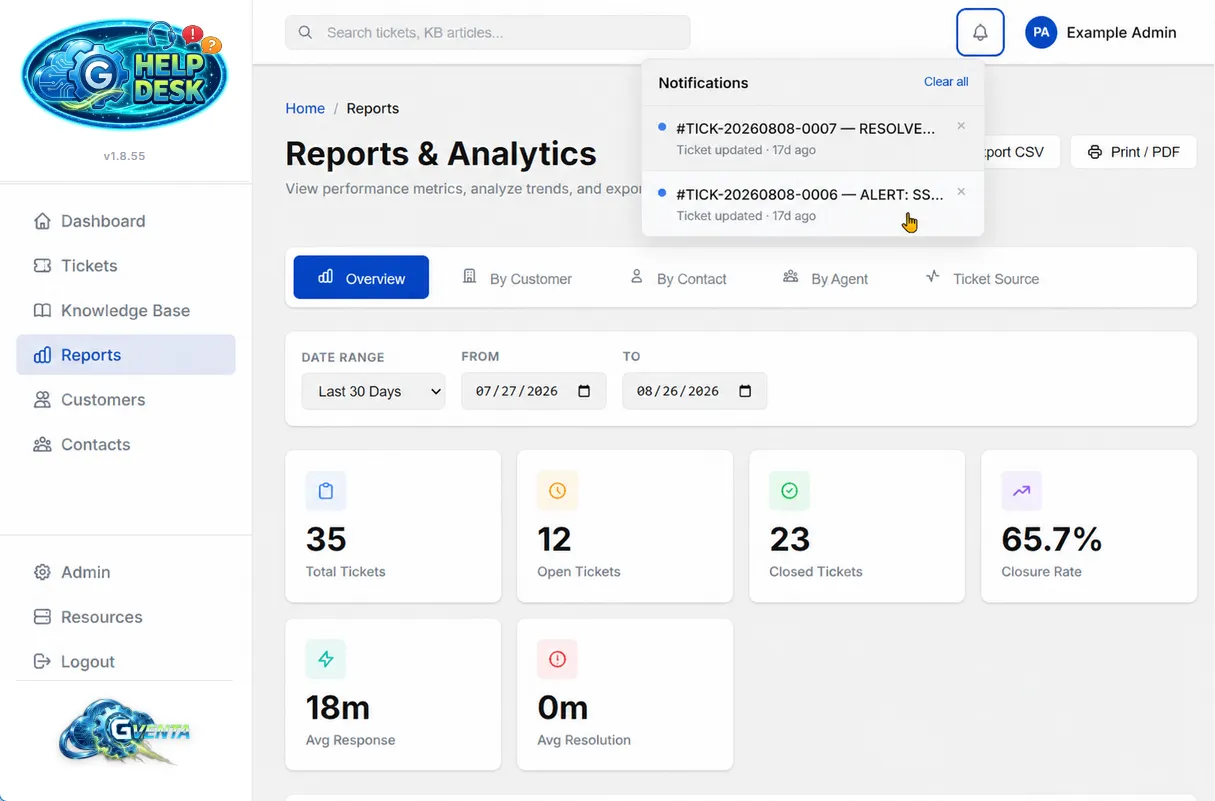 The shared staff layout: sidebar, global search, and the notification bell with recent ticket updates.
Every staff page shares the same layout, so once you know one page you know them all.
- Left sidebar with links to Dashboard, Tickets, Knowledge Base, Reports, Customers and Contacts. The sidebar footer holds Admin (settings), Resources and Logout.
- Top bar with a global search box, a notification bell and your user avatar.
- Mobile menu. On small screens the sidebar collapses into a hamburger menu with an overlay.
- Version number. The live application version is displayed in the interface, which is useful when you contact support.
The notification bell checks for ticket changes every 30 seconds and shows an unread badge when something has changed. It keeps a short, de-duplicated list of the most recent alerts (the ten newest) in your browser, and each page uses the same heartbeat to refresh its own lists in place.
Where to go next
- Core concepts explains the vocabulary: statuses, priorities, message types, ticket numbers and sources.
- Roles and access control describes what each staff role can do and how customer identities are kept separate.
- Dashboard and Tickets cover the day-to-day workspace.
- Settings and administration walks through connecting mailboxes, branding, templates, notifications and SLAs.
- The product page is at /applications/help-desk/.