
Settings and administration
Every GVenta Help Desk settings tab: email integration, users, audit logs, branding, email templates, notifications, SLA targets, plus Profile and Resources.
Documented from GVenta Help Desk version 1.8.55.
Settings, reached from Admin in the sidebar footer or at https://your-instance.example/settings, is the largest screen in GVenta Help Desk. It is organized into tabs, and which tabs you see depends on your role. Non-administrators see only My Profile and API Tokens.
Tabs and who sees them
| Tab | Visible to |
|---|---|
| My Profile | All staff |
| API Tokens | All staff |
| Email Integration | Super Admin |
| User Management | Admin / Super Admin |
| Audit Logs | Admin / Super Admin |
| Look & Feel | Admin / Super Admin |
| Customize Emails | Admin / Super Admin |
| Notifications | Admin / Super Admin |
| Ticket Sources | Admin / Super Admin |
| SLA & Reports | Super Admin |
My Profile
Edit your full name and email address. Email is read-only for everyone except Super Admins; other users see a hint telling them to contact an administrator. Your role is displayed read-only. Change Password asks for your current password, a new password and a confirmation.
Email Integration
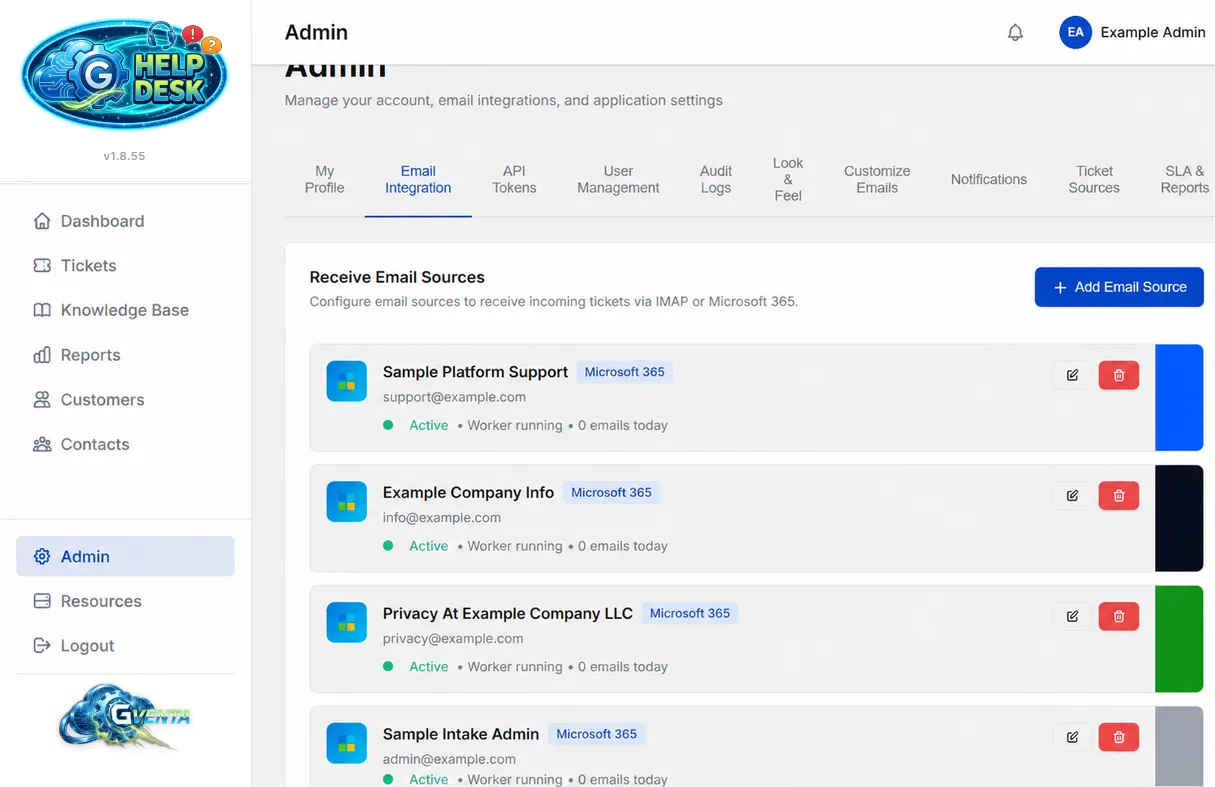 Email Integration: each inbound mailbox with its worker status and the color band used on ticket cards.
This tab is split into three sections that reflect a deliberate separation between receiving and sending email.
Receive Email Sources
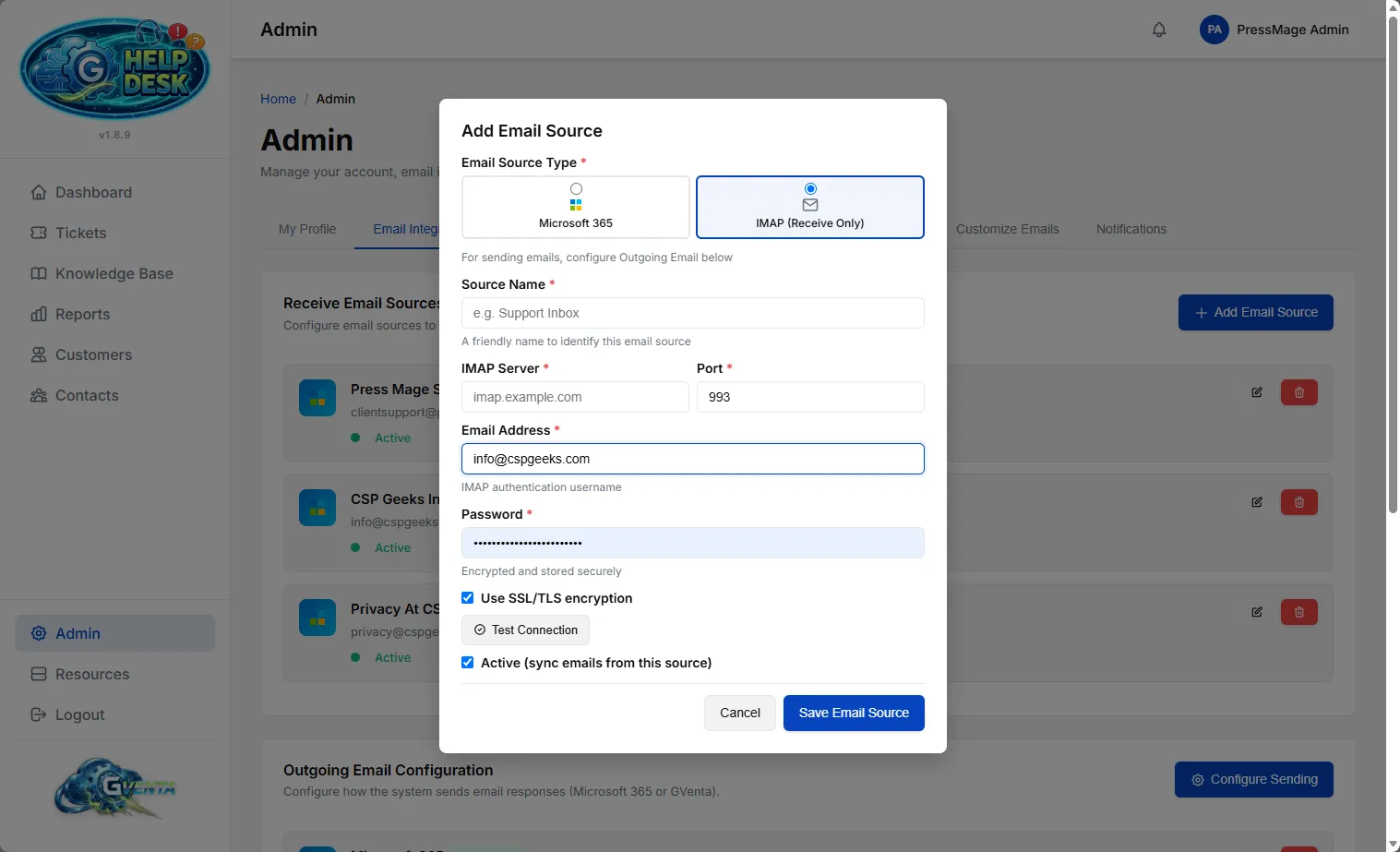 Adding an IMAP source: test the connection before you save.
A list of the inbound mailboxes the Help Desk monitors, with an Add Email Source action. You can monitor several mailboxes at once. The add/edit modal supports two source types:
- Microsoft 365. Connect an account with Microsoft sign-in, then either pick a mailbox from a dropdown of the mailboxes the connected account can access, or type a shared inbox address directly.
- IMAP. Enter the IMAP server, port (defaults to 993), email address and password, and set the SSL toggle. A Test Connection button performs live DNS resolution, port connectivity and authentication checks before you save, so you know it works before it goes live.
Every source also has a panel color picker with a reset. This is the color band that identifies the source on ticket cards throughout the application. Each source has an Active toggle, can be started and stopped individually, and one source can be marked as the default.
Outgoing Email Configuration
A separate modal selects the sending provider. Only one outgoing configuration is active at a time.
- Microsoft 365. Pick the From address from the connected account’s mailboxes or enter a shared inbox, plus a From Name.
- GVenta (SendGrid). Enter the domain name, From email, From name and Reply-To address.
Three actions are available: Test Connection verifies the provider credentials, Verify DNS checks the sending domain’s DNS records, and Send Test Email sends a real message. For GVenta (SendGrid), domain authentication is automated end-to-end from this screen: the platform registers or locates your domain with the provider, retrieves the DNS records you need to add, triggers validation and records the verification status.
Email Sync Worker Status
Live health for every source: whether its worker is alive, the last heartbeat and seconds since it, last sync time, start time, error count, emails processed today, this session and over the worker’s lifetime, the last error and the last check. Totals are aggregated across all sources. A Worker Error Log panel lists recent errors, and workers can be started, stopped and restarted from here. How syncing recovers from outages is described in Email pipeline.
Why it matters: Connect a mailbox in minutes, prove it works before you save, and see at a glance whether mail is actually flowing, with the exact error if it isn’t.
Ticket Sources
A managed vocabulary of channel labels (for example Phone, Storefront, or a partner system), each with a color. Sources can be added, renamed, recolored and removed. An unknown source value arriving through the API auto-registers on first use, so an integration can report its own channel label without an administrator creating it first. See Core concepts.
API Tokens
A list of your own tokens with name, creation date, expiry, last-used timestamp and status. Generate Token asks for a name and an expiry: 30 days, 90 days (the default), 1 year or Never. On creation the plaintext token is shown once, with a copy-to-clipboard button and an explicit warning that it will not be shown again. Each token has Revoke and Delete actions. Only Super Admin and Agent roles may create tokens. See API getting started.
User Management
A list of staff users with create, edit and delete.
Create/Edit user collects email, first name, last name, password (minimum 8 characters), a role (Viewer, Agent, KB Editor or Super Admin, each with an inline description) and an Active checkbox.
The AI Agent section lets you mark the account as an AI agent and then independently grant Can reply to customer and Can suggest answers. The server enforces these switches; see Roles and access control.
Reset Password generates a strong temporary password, with regenerate and copy-to-clipboard controls, and a checkbox to email it to the user. A reset flags the account so the user must change their password at their next sign-in; they are taken to /change-password before they can continue.
Audit Logs
A filterable viewer over the application’s audit trail, with an action filter (Login, Logout, Create, Update, Delete, Ticket Reply, Email Failed), an entity filter (User, Ticket, Message, KB Article, API Token), a Refresh control and paging. Every entry records who acted, what changed with full old and new values, the IP address and user agent, and the time. The API additionally offers per-entity history, per-user activity, recent activity, statistics, CSV export and a retention purge; see Security and storage and the API reference.
Look & Feel
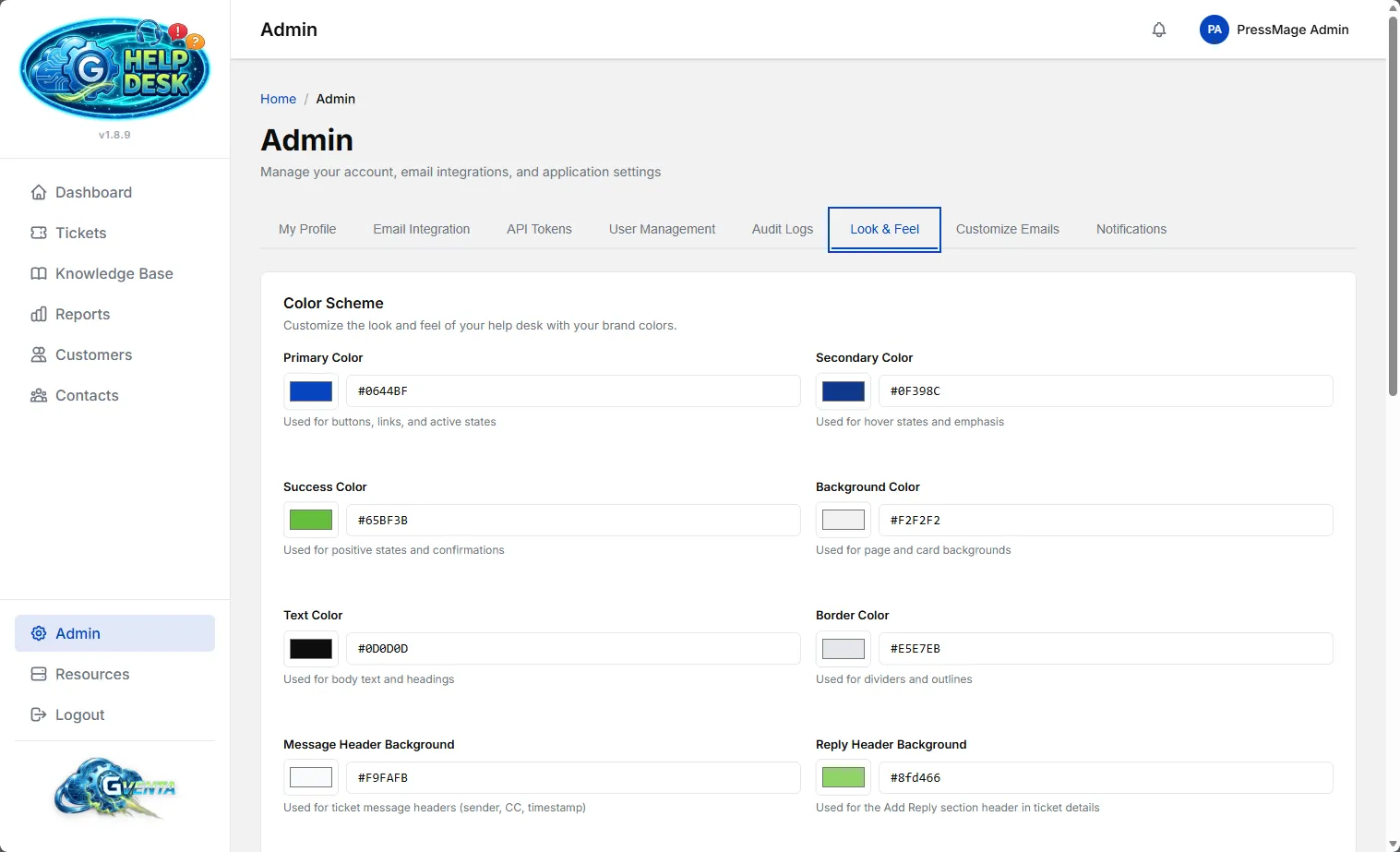 Look & Feel: colors and branding update live, with no rebuild.
Color Scheme
The interface is themed by a set of individually configurable colors, each with a color picker and a hex text field:
Primary, Secondary, Success, Background, Text, Border, Message Header Background, Staff Reply Background, Staff Reply Text, Client Reply Background, Client Reply Text, Internal Note Background, Internal Note Text, Reply Header Background, Ticket Detail Background and Message Body Background.
A live preview updates as you change values. Save Colors applies them and Reset to Defaults restores the shipped scheme. Saved colors are applied to every page of both the staff interface and the client portal immediately, with no rebuild.
Client Portal Branding
Company name, logo alt text and a drag-and-drop logo uploader (PNG, JPEG, GIF, WebP, SVG). This branding applies to the client sign-in page and client portal header, independently of the staff interface.
Business Information
Business name, support email, support phone, website URL, business address, logo URL, footer text, compliance footer, privacy policy URL and unsubscribe text. Every field live-updates the email template previews as you type, because these values feed the merge fields used by every template.
Between the color scheme, portal branding and business information, you can make the Help Desk look like your product, not like someone else’s, in about five minutes, including the emails.
Customize Emails
Six templates, each on its own sub-tab: Ticket Assigned, Ticket Reply, Status Change, Ticket Created, Ticket Closed and Password Reset. The system also ships forgot_password and ticket_submitted templates.
Each template has an editable subject line, a documented list of the merge fields available to that template, a full HTML body editor, a live preview rendered with your real business information, and Save Template and Reset to Default actions. The shipped defaults are kept separately, so reset is always available and never destructive.
Merge fields by template
| Template | Available merge fields |
|---|---|
ticket_assigned | ticket_number, ticket_title, ticket_priority, ticket_status, ticket_url, customer_name, customer_email, assignee_name, business_name, footer_text, compliance_footer |
ticket_reply | ticket_number, ticket_title, ticket_url, customer_name, reply_content, reply_author, business_name, footer_text, compliance_footer |
ticket_status_changed | ticket_number, ticket_title, ticket_url, customer_name, new_status, old_status, business_name, footer_text, compliance_footer |
ticket_created | ticket_number, ticket_title, ticket_priority, ticket_status, ticket_url, customer_name, business_name, footer_text, compliance_footer |
ticket_closed | ticket_number, ticket_title, ticket_url, customer_name, business_name, footer_text, compliance_footer |
password_reset | user_name, user_email, new_password, app_name, login_url, business_name, footer_text, compliance_footer |
forgot_password | user_name, user_email, reset_url, app_name, app_url, business_name, footer_text, compliance_footer |
Template syntax
Insert a value with {{variable}}, and wrap optional content in a conditional block that renders only when the variable has a value:
<p>Ticket {{ticket_number}}: {{ticket_title}}</p>
{{#if compliance_footer}}
<p class="compliance">{{compliance_footer}}</p>
{{/if}}
The reply subject format is also template-driven, which is how the RE: [TICK-YYYYMMDD-NNNN] prefix can be customized. See Email pipeline.
Notifications
A side-channel alerting system for your own team, entirely separate from the customer-facing ticket emails above.
- Five event types, each independently enabled or disabled with its own recipient list: New Ticket Created, Ticket Status Changed, Ticket Assigned, New Message on Ticket and Daily Report.
- Per-event recipients can be added, edited, enabled or disabled, and removed.
- The Daily Report send time is configurable to the minute in server time and defaults to 08:00.
- Send Test per event sends a real notification so you can verify delivery without waiting for a trigger.
A notification failure never affects the action that triggered it. See Background jobs for how the daily report is scheduled.
SLA & Reports
SLA Targets
First-response and resolution targets per priority, expressed in minutes of business time. The shipped defaults are:
| Priority | First response | Resolution |
|---|---|---|
| Urgent | 30 | 240 |
| High | 120 | 1440 |
| Medium | 480 | 2880 |
| Low | 1440 | 10080 |
Targets must be at least one minute.
Business Hours
A timezone selector plus, for each weekday, an enable toggle and open and close times. The default is Monday to Friday, 09:00 to 17:00, in the America/New_York timezone. Only minutes inside these windows count toward SLA targets. If no working days are configured at all, the SLA clock falls back to a plain 24/7 calculation so deadlines never silently disappear.
Holidays
Add named non-working dates that are excluded from SLA timers, and delete them individually.
Emailed Report Digests
Enable a weekly digest (sent on Mondays) and/or a monthly digest (sent on the 1st of the month) of the Reports Overview, with a free-text recipient list. See Reports and analytics.
Why it matters: An SLA clock that respects your actual working week. A ticket raised at 4:55pm on the Friday before a public holiday isn’t quietly breached over a weekend nobody was working.
How deadlines are computed from these settings is explained in SLA engine.
Profile page
Separate from the My Profile tab, /profile is a dedicated personal account page:
- Avatar upload (JPEG, PNG, GIF, WebP) with a live preview and an initials fallback when no avatar is set.
- Profile Information: first name, last name, email and role (read-only).
- Change Password: current, new and confirmation.
- Inline success and error alerts for each section.
Resources page
/resources, reached from the sidebar footer, is a storage dashboard:
- A Database card showing total size and table count.
- A Pod Space card showing total bytes and file count in private object storage, with a clean error state if storage is unreachable.
- A per-category breakdown across Attachments, Avatars and Media Library.
Storage limits and the rules that apply to uploaded files are described in Security and storage.