
Knowledge base
Browse, write and organize knowledge base articles in GVenta Help Desk, with categories, visibility levels, a rich text editor, media library and voting.
Documented from GVenta Help Desk version 1.8.55.
The knowledge base in GVenta Help Desk serves three audiences from one set of content: public self-service, internal-only runbooks for your team, and articles visible to a single named customer. Staff work with it through three surfaces: the article browser, the management view and the article editor.
Article browser
The browser at https://your-instance.example/kb is the reading view for staff. Administrators who visit this address are redirected automatically to the management view.
- Full-text search with a clear control.
- Filters for category, status (Published, Drafts, Archived), sort field (date published, last updated, title, most viewed, most helpful) and sort direction, plus a featured only toggle.
- A card grid of results with pagination. Loading, empty and error states are shown explicitly, with a retry control when something goes wrong.
Opening an article shows its title, category and status chips, author, publication date, view count, tags and the full rendered body. Users with permission see Edit and Delete actions. Every article also has a clean URL at /kb/{slug}.
”Was this helpful?”
Each article carries Yes/No voting with live counters, so you can see which content is actually answering questions. Vote counts feed the “most helpful” sort in the browser.
Article management
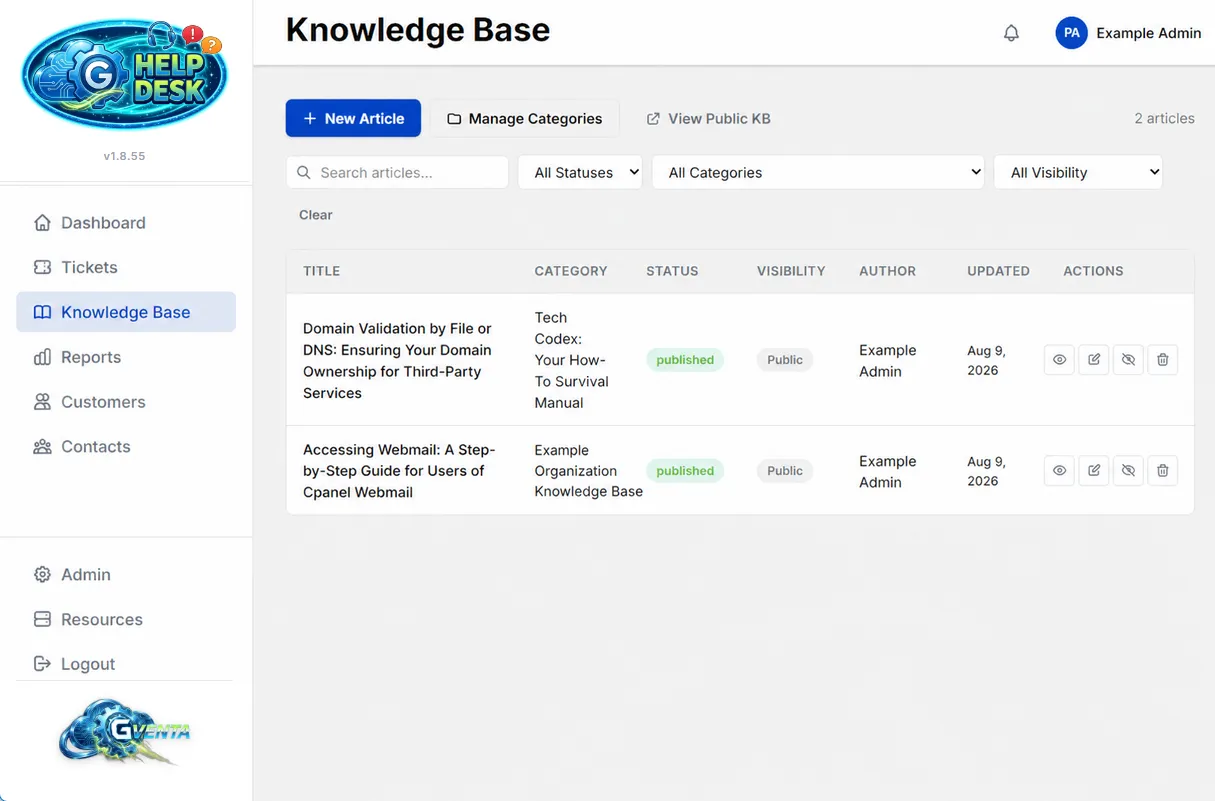 Article management: every article with its status, visibility and author.
The management view at /kb/admin is a table of every article with a live count. Filter it by search term, status, category and visibility (Public, Internal, Company Specific), and use Clear to reset. Deleting an article asks for confirmation, and actions report their outcome through toast notifications.
Category manager
A modal lets you create, edit, reorder and delete categories. Each category has:
| Field | Notes |
|---|---|
| Name | Displayed to readers. |
| Slug | Generated automatically from the name. |
| Description | Optional. |
| Parent category | Categories nest without limit. |
| Visibility | Either Public, or restricted to an explicitly chosen set of customers. |
Category visibility is enforced alongside article visibility: the client portal only shows categories that are public or assigned to the signed-in contact’s company, and only when they contain at least one article that contact may read.
Article editor
The editor at /kb/admin/article is where articles are written.
Toolbar
The rich text editor offers headings H1 to H3, bold, italic, underline, strikethrough, highlight, bullet and numbered lists, blockquote, code block, left/center/right alignment, links, images, horizontal rule, and undo/redo. A fullscreen mode removes distractions for long articles, and a live word count is always visible.
Media library
A media library modal lets you upload images, browse what has already been uploaded, insert an image into the article, and delete images you no longer need. Images are stored in private object storage isolated to your instance and served through an authenticated proxy, never from a public URL.
View and edit toggle
Switch between the editor and a live rendered preview to check how the article will read.
Sidebar controls
| Control | Behavior |
|---|---|
| Status | Draft, Published or Archived. |
| Visibility | Public, Internal (Staff Only) or Company Specific. Choosing Company Specific reveals a company picker. |
| Category | Type-ahead search, with an inline “create new category” flow if the one you need does not exist yet. |
| Tags | A chip input. |
| Slug | Generated from the title automatically; you can override it. |
| Excerpt | Generated from the body automatically if left blank. |
What happens when you save and publish
- Slugs are made unique at save time, so two articles with the same title never collide.
- Plain-text versions of the body and excerpt are derived from the HTML automatically. This is what powers search and the previews in lists.
- Publishing stamps the publication date on the article, which is the date shown to readers and used by the “date published” sort.
- A dedicated permission audit trail records create, update, delete, publish, unpublish, view and permission-change events for every article, separate from the main application audit log, so you can see exactly who changed what in your knowledge content and when.
How visibility is enforced
Visibility is not a client-side filter that hides things after the fact. When a customer contact requests articles from the client portal, the query itself only returns articles that are published and either public or assigned to that contact’s company, from categories that are public or assigned to that company. Internal and draft content is never sent to the browser at all. The four visibility values and the client portal behavior are summarized in Core concepts; the customer-facing experience is described in Client portal.
Why it matters: One knowledge base serves three audiences at once, with the boundary between them enforced in the database query rather than in the browser.
Who can do what
Creating, editing, deleting and publishing articles requires the knowledge base permissions held by the Super Admin and KB Editor roles. Agents and Viewers can read articles but not change them. See Roles and access control.
Related pages
- API reference for the article, category and image endpoints, including the nested category tree and breadcrumbs.
- Settings and administration for the Resources page, which reports how much storage the media library is using.