
The project board
A tour of the GVenta Kanban Board project board: header, epics strip, live filters, swim lane columns, story cards, drag-and-drop, lane management and members.
Documented from GVenta Kanban Board version 2.1.15.
The project board is the centerpiece of GVenta Kanban Board. Every project has one, and it is where most day-to-day work happens: reading cards, dragging them between lanes, reassigning them and adding new ones.
Header
The board header shows:
- The project name.
- A link to the linked repository, fetched live from Bitbucket or GitHub. If the provider is unreachable the link is silently omitted rather than shown broken.
- An expandable two-line description with a “show more / show less” toggle.
- A favorite star.
- Action buttons for Members, Edit Project and Manage Swim Lanes. Each is shown only to users permitted to use it; see Roles and access control.
Epics strip
When the project has epics, a horizontally scrolling row of epic cards sits beneath the header. Each card shows the epic ID and title, a child-story count, a done/total ratio, a percentage, and a progress bar that turns green at 100%. A Show stories expander reveals the child list with per-story status chips. A View All link goes to the project’s epic index.
Filter bar
The filter bar is a live, client-side filter applied across the whole board with no server round trip. You can combine:
- Free-text search over story titles.
- Assignee — All Users, Assigned to Me, Unassigned, or any specific project member.
- Priority — Low, Medium, High, Critical.
- Type — any of the seven story types.
- Due date — All, Overdue, Due This Week, No Due Date.
- Clear All to reset.
Active filters render as removable badges alongside a live “showing X of Y” count.
The board
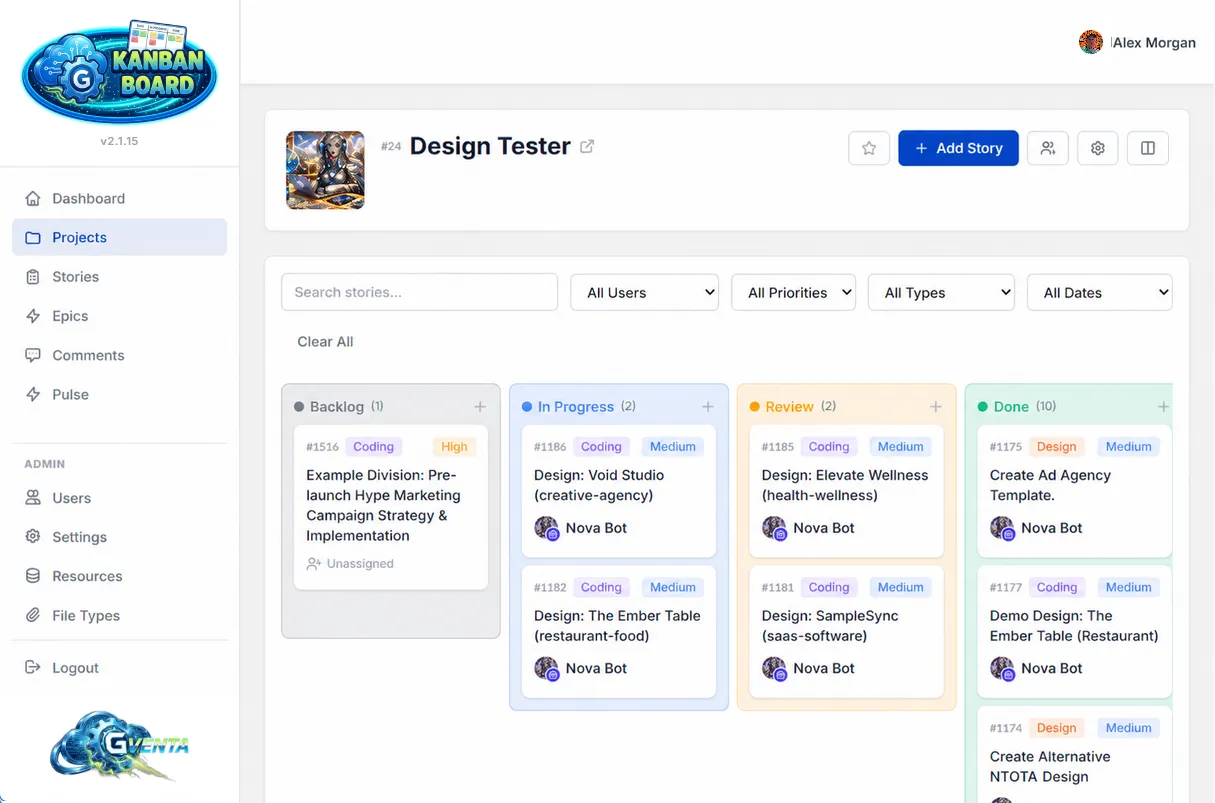 A project board: one column per swim lane, live counts, and cards with type, priority and assignee.
The board has one column per visible swim lane, tinted with that lane’s color. Each column is headed by a color dot, the lane name, a live card count and a + quick-add button. Columns scroll horizontally on desktop and stack vertically on mobile.
Story cards
Each card carries:
- the story ID
- a type chip
- a priority chip
- the title, with proper word wrapping so long unbroken strings cannot break the layout
- the assignee avatar (with the AI badge where applicable)
- the due date, which turns red when overdue
Clicking a card opens the story detail page.
Card interactions
- Drag and drop between lanes — the new lane and position are saved immediately, and the story’s canonical status is re-derived from the target lane’s status type.
- Drag to reorder within a lane — the new ordering is saved.
- Inline assignee change — clicking the avatar opens a compact picker listing every assignable project member (with AI badges) plus an Unassigned option. Selecting one reassigns the story without leaving the board.
- Quick add — the lane’s + opens a modal that creates a story in that lane from a title alone. You can fill in the rest later from the story page.
Visiting the board also silently records the visit, which is what powers the Quick Links on your Dashboard.
Why it matters: Reassigning, re-prioritizing and re-lane-ing work is a single drag or click, and the status behind each card is always kept consistent for you.
Managing swim lanes
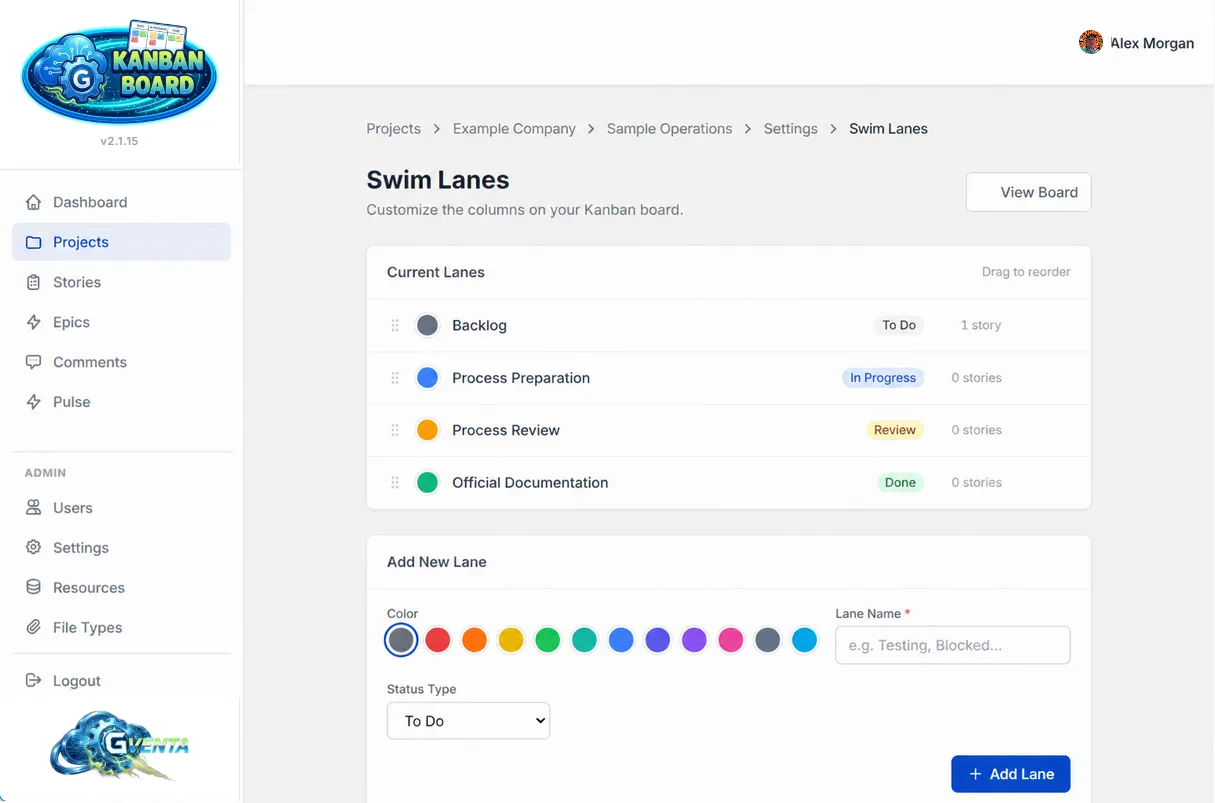 Swim Lanes: drag to reorder, edit or delete existing lanes, and add new ones with a color and status type.
The Manage Swim Lanes button opens a dedicated lane management screen. It is available to anyone who can edit the project.
Current lanes
A drag-to-reorder list. Each lane shows its color swatch, name, status type and current story count, with edit and delete actions. Reordering is saved automatically.
Editing a lane
The edit modal lets you rename the lane, recolor it with a palette picker, and change its status type to any of the nine available options: To Do, In Progress, Blocked, Review, Testing, Done, Deployed, Abandoned, Archived.
Adding a lane
Enter a name, choose a color and pick a status type. Colors are validated on the server against a strict six-digit hex pattern; a malformed color falls back to neutral gray rather than being rejected.
Delete protection
A lane that still contains stories cannot be deleted. The request is refused with a message naming the exact number of stories that must be moved first. Move or reassign those stories to another lane, then delete.
Every project starts with four default lanes: Backlog, In Progress, Review and Done. You can rename, recolor and reorder them, and add as many more as your process needs. See Core concepts for how lane status types relate to the four canonical statuses.
Project members
The Members button opens the roster.
Current members
Each row shows the member’s avatar, name, email and project role. Project admins (and system administrators) can promote a member to project admin, demote a project admin to member, or remove a member. The project Owner is protected from both: their role cannot be changed and they cannot be removed.
Adding a member
A dropdown lists every user not already in the project, alongside a role selector (Member or Admin). Adding a restricted user here is how you grant them access to this project.
Every membership change writes an activity-log entry naming the actor, the affected user and the before/after roles. Users without membership-management rights see the roster read-only.
Related pages
- Stories, epics and tasks — what happens when you open a card.
- Dashboard and projects — editing, archiving and favoriting the project itself.
- Automatic behaviors and safeguards — lane/status synchronization and board positioning in detail.