
Administration
The GVenta Kanban Board admin area: user profiles, creating and deactivating users, instance settings, Git providers, resource usage and file types.
Documented from GVenta Kanban Board version 2.1.15.
Administrators see an Admin section in the sidebar with four pages: Users, Settings, Resources and File Types. This page covers all four, along with the public user profile that every user can view.
User profiles
Clicking a name or avatar anywhere in the application opens that user’s read-only public profile. It shows their avatar, name, email, system role and AI-agent badge where applicable, their Assigned Work grouped into In Progress / Review / Backlog / Done with a total count, and the Projects they belong to.
When a restricted user views someone else’s profile, the projects and stories shown are intersected with the viewer’s own accessible set: you cannot learn about work you have no access to by browsing a colleague’s profile. The page also computes a smart back link from an explicit ?from= parameter or a same-origin referrer, so returning lands you where you came from.
Users
The Users page is a table of every active user with avatar, name, email, role and a count of the projects they belong to, plus Edit and Deactivate actions and a Create User button.
Creating a user
The form asks for:
- Name
- Role: User, Restricted or Admin, each with an inline explanation of what it grants (see Roles and access control)
- Password, with confirmation
- The “Is AI agent” checkbox
It validates required fields, that the passwords match, a minimum of 8 characters, the email format and email uniqueness.
Editing a user
The same fields, plus an optional password-change section (leave it blank to keep the current password) and a read-only list of the user’s project assignments.
Deactivating a user
Deactivation is soft: the account can no longer sign in, and any API tokens it owns stop working immediately, but all of its history stays intact. You cannot deactivate your own account.
Every create, update and deactivate writes an activity-log entry.
Settings
Application
The display name of the instance, shown throughout the interface.
Maintenance
A maintenance-mode toggle.
Git Source
Choose the repository provider for the whole instance:
- Bitbucket — workspace, email and app password.
- GitHub — organization or username, and a personal access token.
- Manual — no integration; repository fields on projects become free text.
Provider-specific fields show and hide live as you change the selection. Credentials are encrypted at rest. Token fields render as password inputs and never echo the stored value back to the browser; once a token is saved the field displays “Leave blank to keep current token”, and submitting it empty preserves the existing token rather than wiping it.
See Integrations for how each provider is used and what happens when it is unreachable.
The Settings page also hosts avatar upload and removal for the signed-in administrator.
Resources
A capacity and consumption overview.
- Database — total size across all tables (data plus indexes), formatted to the appropriate unit, and the table count.
- Object storage — total bytes and object count for this instance’s storage, broken down by category (attachments, avatars, project images) with formatted sizes.
If storage credentials are missing or the storage service is unreachable, the page degrades gracefully and shows the error rather than failing.
File Types
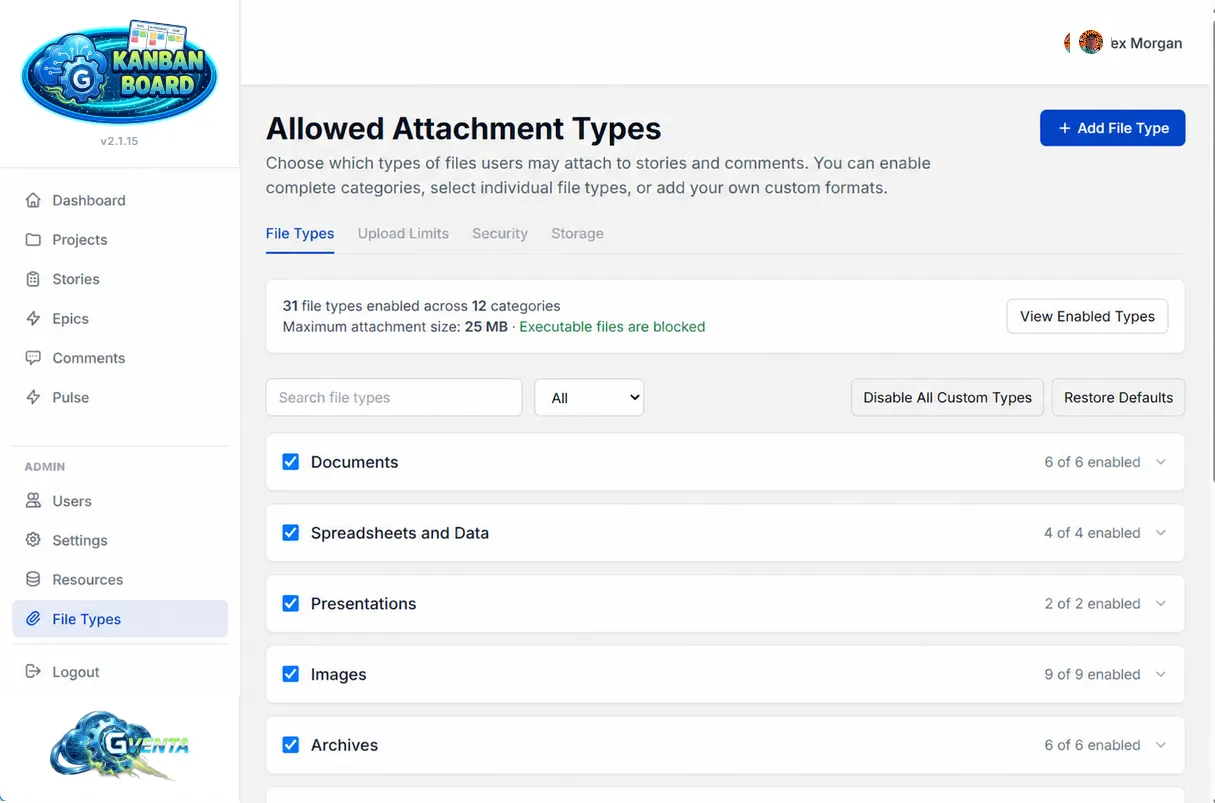 File Types: enable whole categories or individual types, with executables always blocked.
The File Types page governs exactly what users are allowed to upload, instance-wide.
Categories
Twelve seeded categories: Documents, Spreadsheets and Data, Presentations, Images, Archives, Audio, Video, Design Files, Development Files, Email/Calendar/Contacts, Specialized Business Files, and Custom Types.
Each category has a master enable/disable switch covering every type inside it.
Per-type controls
Each type has:
- an enable/disable switch
- a security classification: Standard, Review Recommended or High Risk
- for custom types, an optional per-type maximum size
System types can only be enabled, disabled or size-capped.
Custom types
You can define entirely new types with a name, an extension list, a category, a MIME type list, a security classification, an optional size cap and a description. Custom types are fully editable and deletable.
Note that a platform hard-block list of roughly fifty executable and script extensions can never be enabled by anyone, through any interface, including custom types. See File handling and security.
Global upload limits
| Setting | Default |
|---|---|
| Maximum file size | 25 MB |
| Maximum attachments per comment | 10 |
| Maximum attachments per story | 50 |
Plus master switches for story attachments, comment attachments and a malware-scan requirement flag.
Bulk actions
- Restore Defaults returns every system type to its shipped state.
- Disable All Custom Types switches off everything an administrator has added.
Tools
- A live search across type names.
- A filter: All / Enabled / Disabled / Custom / High Risk.
- A View Enabled Types modal listing exactly what is currently accepted.
Autosave and audit
Changes save automatically as you make them; there is no Save button to forget. Every change is written to a dedicated attachment audit log recording the actor, the action, the target and the before/after values.
Why it matters: You can prove, at any later date, exactly which file types were allowed, who changed the policy and when.
Related pages
- Roles and access control
- File handling and security — the upload pipeline these settings feed into.
- Integrations — Bitbucket, GitHub, SendGrid and object storage.