
Dashboard and projects
Your personal Dashboard, the Projects list, creating and editing projects, favorites, automatic quick links, and archiving and restoring in GVenta Kanban Board.
Documented from GVenta Kanban Board version 2.1.15.
The Dashboard is your personal landing page in GVenta Kanban Board, and the Projects list is where every project you can access lives. This page covers both, along with creating, editing, favoriting, archiving and restoring projects.
The Dashboard
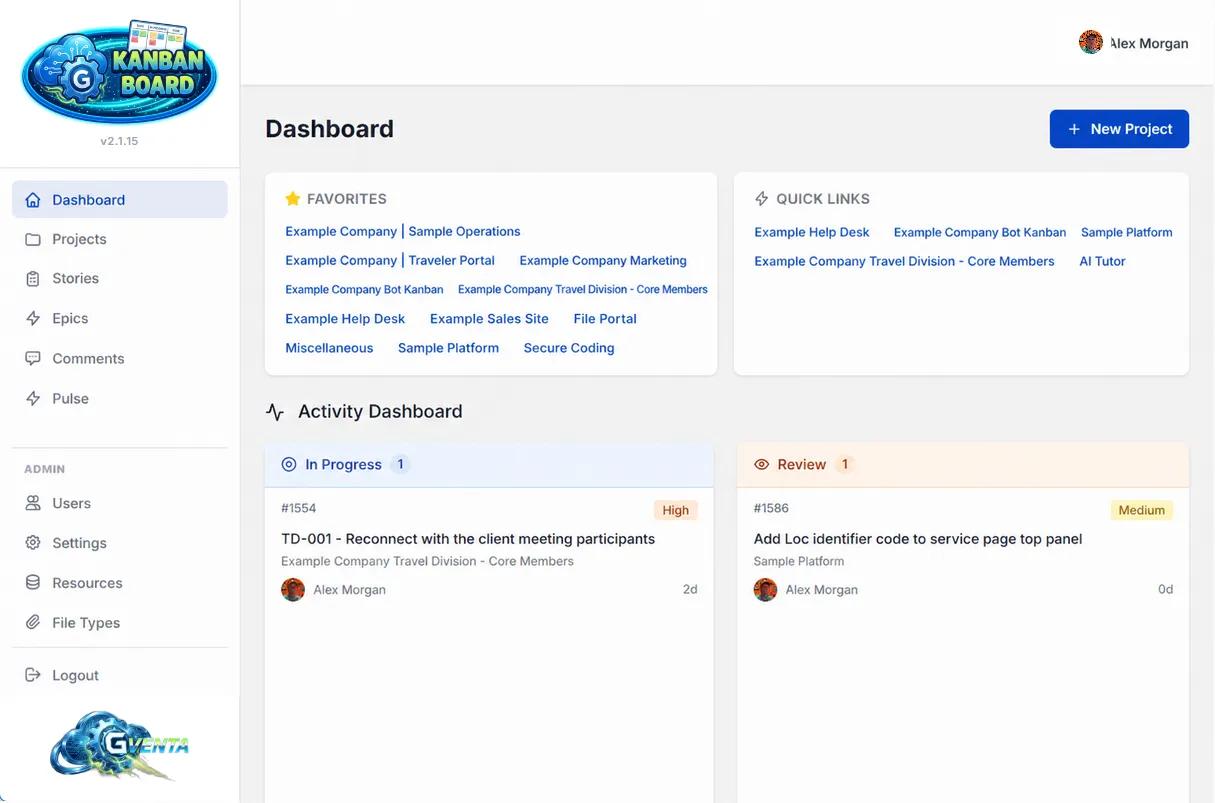 The Dashboard with Favorites, Quick Links and your In Progress and Review work.
The Dashboard is the first page you see after signing in. It has four regions.
Header
The page title and, for administrators and standard users, a New Project button. Restricted users do not see the button because they cannot create projects.
Favorites card
Every project you have starred, as a flowing list of links. The card hides itself when you have no favorites and appears live, without a reload, the moment you star your first project from the Projects page.
Quick Links card
Automatically maintained shortcuts derived from your actual navigation history: the two projects you open most often, followed by the three you opened most recently that are not already in that top two. There is no configuration and no manual pinning. Opening a project board silently records the visit, and that record is the only input to this list.
Activity Dashboard
Two side-by-side paginated columns, In Progress and Review, each scoped strictly to stories assigned to you in active, non-archived projects. Each card shows:
- the story ID
- a color-coded priority chip
- the title
- the parent project
- the assignee avatar, with the AI badge where applicable
- a “days in status” aging counter
Column headers carry live totals. Previous/Next controls page through five stories at a time, fetching subsequent pages without a reload, with spinner, empty and error states.
Why it matters: The Dashboard only ever shows work that is assigned to you and still active, so it is a to-do list you never have to curate.
The Projects list
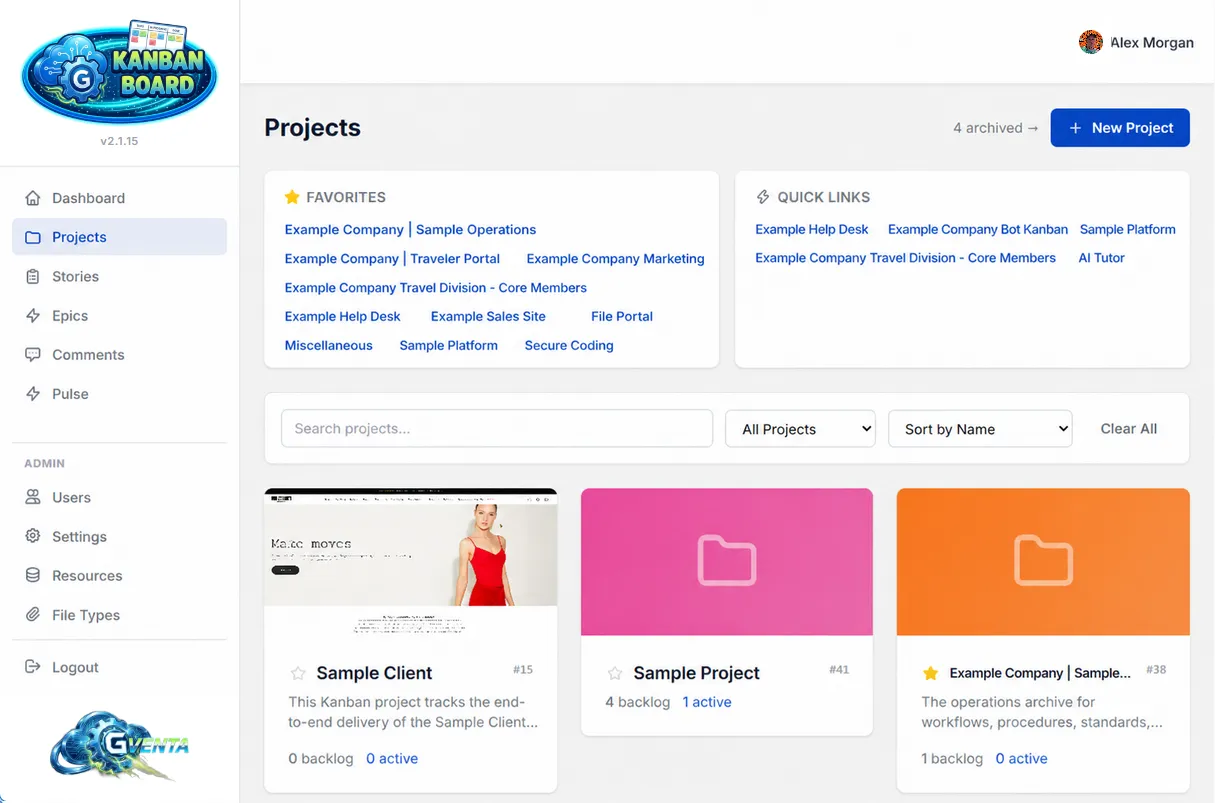 The Projects list: search, repository filter, sort, and a card per project with its story counts.
The Projects page is a card grid of every project you can access. Each card shows the banner image (or a generated placeholder), the project name, its description, a star toggle and story counts broken down by status.
Controls
- Live text search over project names.
- Repository filter — All / With Repository / No Repository.
- Sort — Name / Created Date / Activity.
Also on the page
- The same Favorites and Quick Links surfaces as the Dashboard.
- A New Project button for administrators and standard users.
- For administrators and standard users, a link through to Archived Projects with a count.
Favorites
Starring a project is an instant toggle. The star icon, its tooltip and the Favorites bar all update in place without a page reload. Favorites are personal: your stars are not visible to anyone else.
Creating a project
Administrators and standard users can create projects from the New Project button on the Dashboard or the Projects page. Restricted users are refused.
The form asks for:
- Name (required).
- Description, which accepts Markdown.
- Repository, whose behavior depends on the Git provider your administrator has configured in Settings:
- Bitbucket or GitHub — the field is a dropdown populated live from the provider, with loading, empty and error states.
- Manual — a free-text field accepting a slug or a full repository URL.
On submission the project is created, a URL slug is generated from the name, you are enrolled as the project Owner, and the four default swim lanes (Backlog, In Progress, Review, Done) are provisioned. You are then redirected to the new board.
Projects can also be created through the API, which runs the exact same bootstrapping; see API examples.
Editing a project
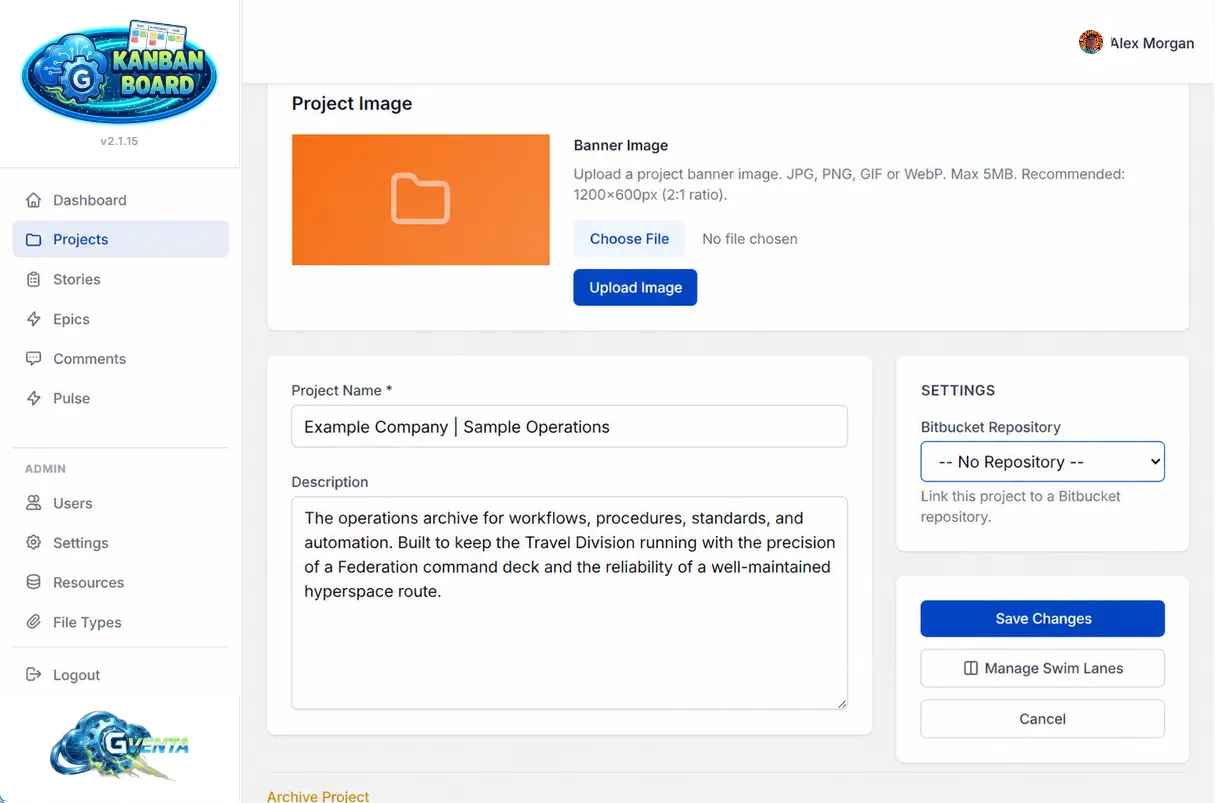 Editing a project: banner image, name, description, repository link, and the lifecycle actions.
The Edit Project button on the board header opens the edit page. It is available to system administrators, the project creator, project owners and project admins.
Banner image
Upload a project image, or remove the existing one. Images are stored privately in object storage and served back through the application’s own domain. Replacing an image deletes the previous one.
Details
Name, description and repository, using the same provider-aware repository selector as the create form. Renaming a project regenerates its URL slug from the new name.
Lifecycle actions
- Archive the project — available to system administrators and project owners.
- Delete the project — available to system administrators and the project creator. Deletion is a soft deactivation, not a permanent removal.
Archived projects
The Archived Projects page is available to administrators and standard users. It lists every archived project along with who created it, who archived it and when, and offers a Restore action to administrators and project owners.
Archived projects disappear from project lists, favorites, quick links and Dashboard queries, but retain all their data intact. Restoring a project brings everything back exactly as it was. Both archiving and restoring are recorded in the activity log.
Related pages
- The project board — what you see once you open a project.
- Roles and access control — who can create, edit, archive and delete projects.
- Integrations — how the repository dropdown talks to Bitbucket and GitHub.